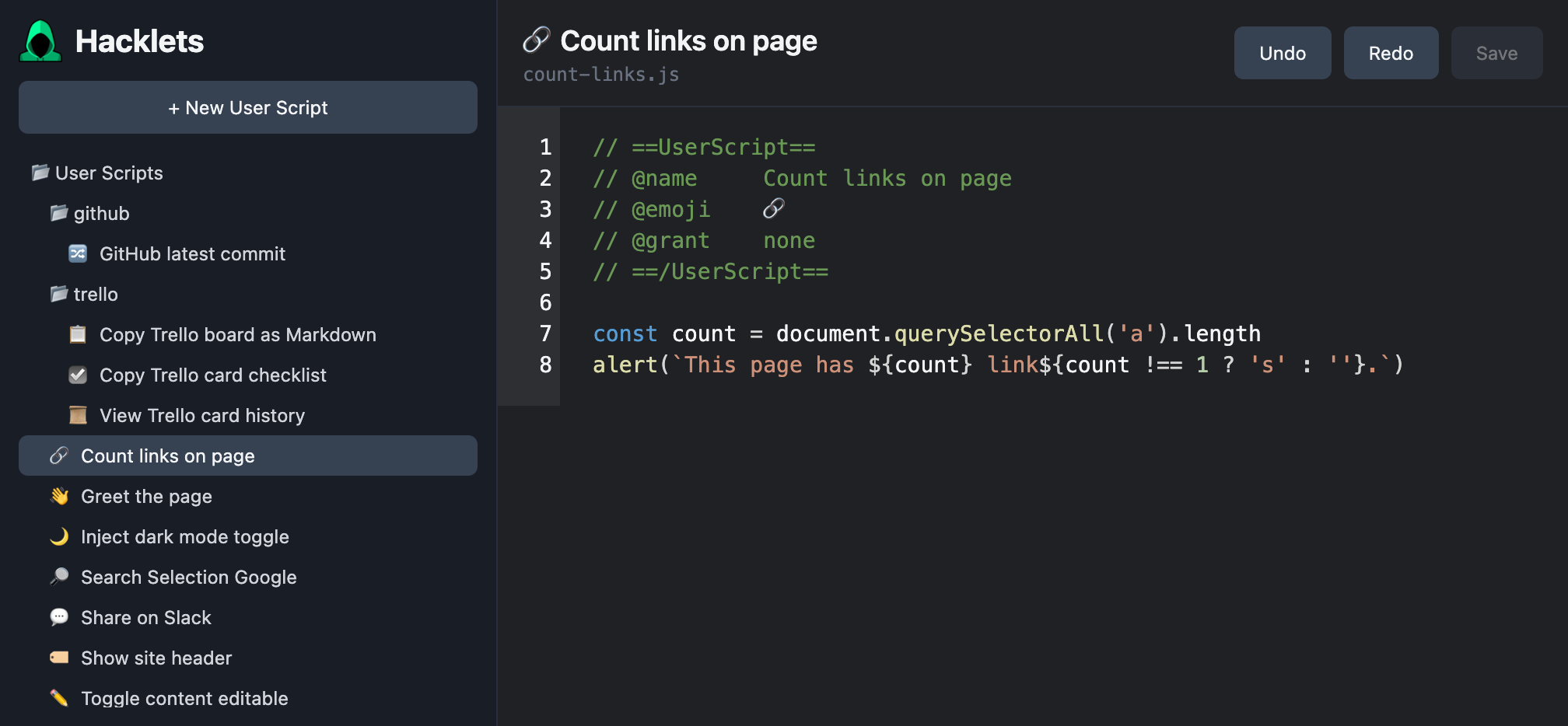
Hacklets ships a small script editor for creating and editing the two kinds of JavaScript it runs:
- User scripts — files in your chosen folder commands directory.
- Bookmarklets —
javascript:bookmarks stored in your bookmark store.
Open it from the commands palette with the Hacklets: Script Editor command.
The editor
- File tree — a sidebar shows your scripts, grouped by source (folder scripts vs. bookmarklets). Select one to open it.
- CodeJar editing — a lightweight, dependency-free code editor core keeps typing fast and honest.
- Prism highlighting — syntax highlighting that makes script structure readable at a glance.
- Create and delete — add new scripts or bookmarklets and remove ones you don’t need, all from the editor.
The save flow
Changes are written to wherever the script lives:
- Folder scripts save back to the file on disk via the File System Access API.
- Bookmarklets save back to your browser’s bookmark store.
When you save a script with a @name metadata header, the palette picks up the
new title and emoji on next open.
Editing a script
// ==UserScript==
// @name     Greet the page
// @emoji    👋
// @match    *://*/*
// ==/UserScript==

const name = prompt('What should I call you?')
alert(`Hello, ${name}!`)
Edit the @name or @emoji lines to rename the command and change its icon.
Add or remove @match lines to control which pages the script appears on.
See Scripts for the full header
reference.
Editing a bookmarklet
A bookmarklet is a plain javascript: URL. In the editor you write the body
without the javascript: prefix — Hacklets handles the wrapping when it saves
back to your bookmarks.
Related
- Scripts — folder command format and metadata.
- Bookmarklets — what bookmarklets can do.